How to Extend Your Wireless Range Using an Old Router
Using a old router to extend a wireless signal is a cheap way to build a better wireless network.
Basically we are turning a old router into a access point buy running a Ethernet cable and changing a few settings.
This can be used in many situations from extending wireless to a garage or a room with a bad WiFi signal.
The difficulty to do this is low to medium. If you have setup a router and logged into its settings with a computer to change a wireless password, or port forwarding. You will not have a problem setting up a old router to extend the WiFi network.
Any old router will work even routers built 10-15 years ago. Obviously the newer the router the better since wireless technology has improved over the years.
Keep in mind each router will have its own options and setup screen, including login passwords. While the setup menu screen will be different most all will have the basic options to use it as a wireless AP.
Steps for Turning a Old Router into a Wireless Range Extender
1…
First thing to do is do a factory reset of the router.
While this may not be necessary if you know the routers default gateway, wireless password and so on, most will not so it is best to factory reset it.
Routers have a small Pin Hole located somewhere that when pressed for 2-5 seconds factory resets it.

A paper clip can be used to insert into the pin hole and press the button.
2…
Next we need to connect to the router via a Ethernet cable.

Turn off all other internet connections to be sure you are logging into the correct router
3…
We now need to log into the router and get the IP address it is on. To do this we need a command prompt window.
Click the Window Icon on the computer and type in CMD and press the Enter Key.

A command prompt box will come up. In the box type in ipconfig

We need the Router Default Gateway IP address to log into to it. Here the default gateway IP is 192.168.1.1

4…
After we know the routers IP address we can log into it with any Browser.
Open any Browser and in the URL box at the top type in the IP address of the router.

5…
The username and password of the router will need to be entered.
This is found in the manual of the router which many toss away.
If you dont have the manual simply do a Google search of the router name and model for the default username/password.
Common username/passwords are admin/no password, or admin/admin.

6…
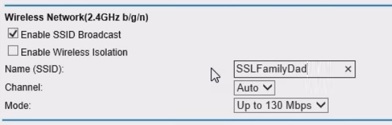
We now need to go into wireless settings and setup a SSID and password for the wireless.

Remember each router will have a unique menu system but the options will be there somewhere.
I always like to give a new SSID broadcast name that is easy to remember. This is what a wireless device will see when searching for WiFi.

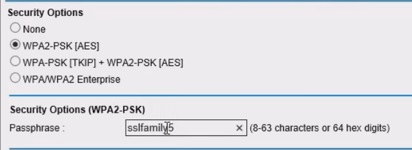
Setup the wireless password.

7…
The most important setting for the router is next which is to turn off DHCP and give it a unique IP address.
This setting is usually found in Advanced and LAN Setup.

Turn off DHCP.

We dont want the old router assigning IP addresses as the main router will do this. We simply want it to act as a access point.
Next give it a unique IP address by changing the last subset to a higher number.
For example here the IP address has been changed from 192.168.1.1 to 192.168.1.220

The first three subsets will remain the same only change the last subset to a high number.
8…
The last step is to place the router where it is needed and run a Ethernet cable to it. Be sure to only plug the Ethernet cable into one of the LAN ports on the router.
Summary
Using a old router to extend your current WiFi network is not a difficult task.


Having a routers manual can go a long way in making a setup easier. Since most will not have the manual Google the router name and model number to find it.
Although wireless range extenders are cheap with minimal technical knowledge a old router can find a new life.
Basically we are turning a old router into a access point buy running a Ethernet cable and changing a few settings.
This can be used in many situations from extending wireless to a garage or a room with a bad WiFi signal.
The difficulty to do this is low to medium. If you have setup a router and logged into its settings with a computer to change a wireless password, or port forwarding. You will not have a problem setting up a old router to extend the WiFi network.
Any old router will work even routers built 10-15 years ago. Obviously the newer the router the better since wireless technology has improved over the years.
Keep in mind each router will have its own options and setup screen, including login passwords. While the setup menu screen will be different most all will have the basic options to use it as a wireless AP.
Steps for Turning a Old Router into a Wireless Range Extender
1…
First thing to do is do a factory reset of the router.
While this may not be necessary if you know the routers default gateway, wireless password and so on, most will not so it is best to factory reset it.
Routers have a small Pin Hole located somewhere that when pressed for 2-5 seconds factory resets it.
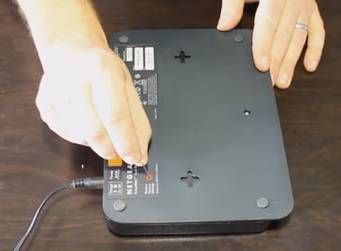
A paper clip can be used to insert into the pin hole and press the button.
2…
Next we need to connect to the router via a Ethernet cable.
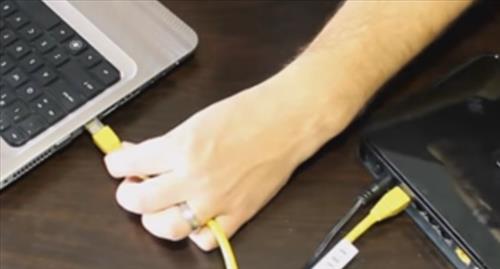
Turn off all other internet connections to be sure you are logging into the correct router
3…
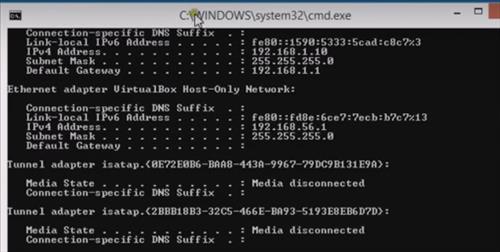
We now need to log into the router and get the IP address it is on. To do this we need a command prompt window.
Click the Window Icon on the computer and type in CMD and press the Enter Key.
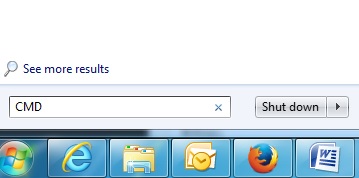
A command prompt box will come up. In the box type in ipconfig
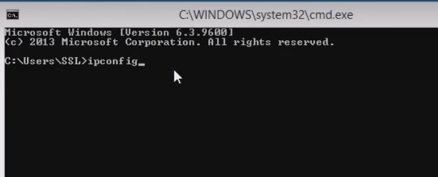
We need the Router Default Gateway IP address to log into to it. Here the default gateway IP is 192.168.1.1
4…
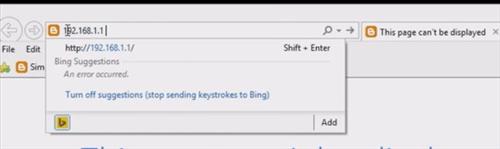
After we know the routers IP address we can log into it with any Browser.
Open any Browser and in the URL box at the top type in the IP address of the router.
5…
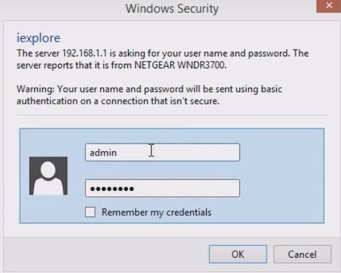
The username and password of the router will need to be entered.
This is found in the manual of the router which many toss away.
If you dont have the manual simply do a Google search of the router name and model for the default username/password.
Common username/passwords are admin/no password, or admin/admin.
6…
We now need to go into wireless settings and setup a SSID and password for the wireless.
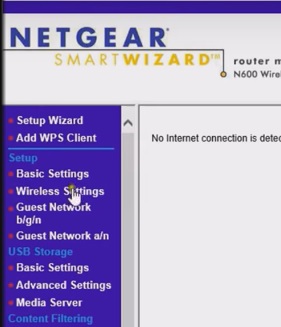
Remember each router will have a unique menu system but the options will be there somewhere.
I always like to give a new SSID broadcast name that is easy to remember. This is what a wireless device will see when searching for WiFi.
Setup the wireless password.
7…
The most important setting for the router is next which is to turn off DHCP and give it a unique IP address.
This setting is usually found in Advanced and LAN Setup.
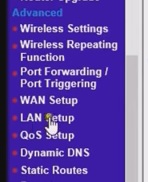
Turn off DHCP.
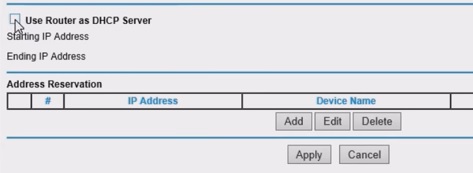
We dont want the old router assigning IP addresses as the main router will do this. We simply want it to act as a access point.
Next give it a unique IP address by changing the last subset to a higher number.
For example here the IP address has been changed from 192.168.1.1 to 192.168.1.220
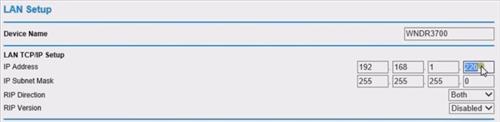
The first three subsets will remain the same only change the last subset to a high number.
8…
The last step is to place the router where it is needed and run a Ethernet cable to it. Be sure to only plug the Ethernet cable into one of the LAN ports on the router.
Summary
Using a old router to extend your current WiFi network is not a difficult task.

Having a routers manual can go a long way in making a setup easier. Since most will not have the manual Google the router name and model number to find it.
Although wireless range extenders are cheap with minimal technical knowledge a old router can find a new life.

Comments
Post a Comment